



AwardWallet receives compensation from advertising partners for links on the blog. The opinions expressed here are our own and have not been reviewed, provided, or approved by any bank advertiser. Here's our complete list of Advertisers.
In our ongoing quest to help you get the most out of your AwardWallet account (it’s a powerful tool after all), we’ll show you how the AwardWallet timeline brings all of your travel plans together into one convenient, master itinerary that you can access anytime, from anywhere.
Don't have an AwardWallet account yet? Sign up for free and track unlimited rewards programs and travel plans.
Page Contents
Basics of the AwardWallet Travel Timeline
One of AwardWallet’s most popular and helpful features is its personal travel timeline, which displays all of your upcoming trips and reservations. From flights and hotel stays to rental cars and dinner reservations, AwardWallet organizes it all in one place.
Once added, you can view your upcoming travel by clicking the “Trips” button at the top of your AwardWallet account.
What types of travel plans can AwardWallet track?
AwardWallet can track nearly any reservation or detail for your trip. Here are a few examples of the types of reservations AwardWallet can track:
- Flights
- Hotels
- Rental cars
- Bus rides
- Cruises
- Taxis or limo rides
- Ferries
- Parking reservations
- Events
As you add reservations to your account, they’ll appear in chronological order on your trip timeline. Your earliest travel plans show up first, followed by everything that comes next.
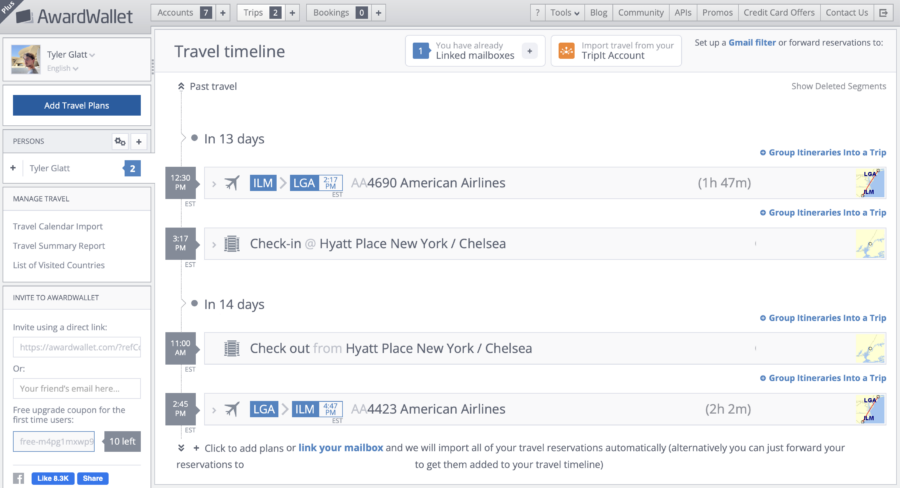
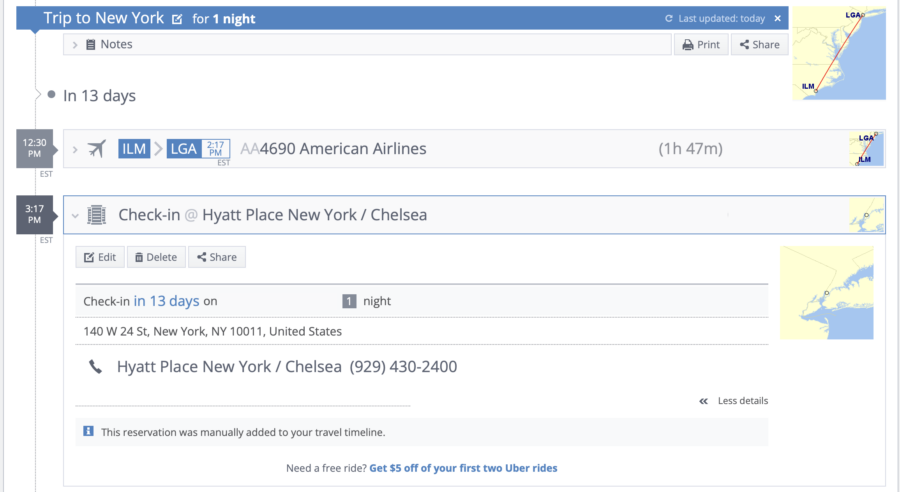
In the trip above, AwardWallet grouped my round-trip flight and hotel reservation, putting all the key details like confirmation numbers (removed from the screenshot for privacy) and check-in times into a neat, easy-to-read summary.
Get detailed information about every reservation in your timeline
Access to all of your travel details is one of AwardWallet’s most convenient features. Instead of juggling emails from airlines, hotels, and everything else tied to your trip, you can view it all in one place on your AwardWallet trip timeline, where everything is organized and easy to scan.
Once a trip is added to your timeline, you can click on any reservation to see more details. Here’s a closer look at a flight reservation:
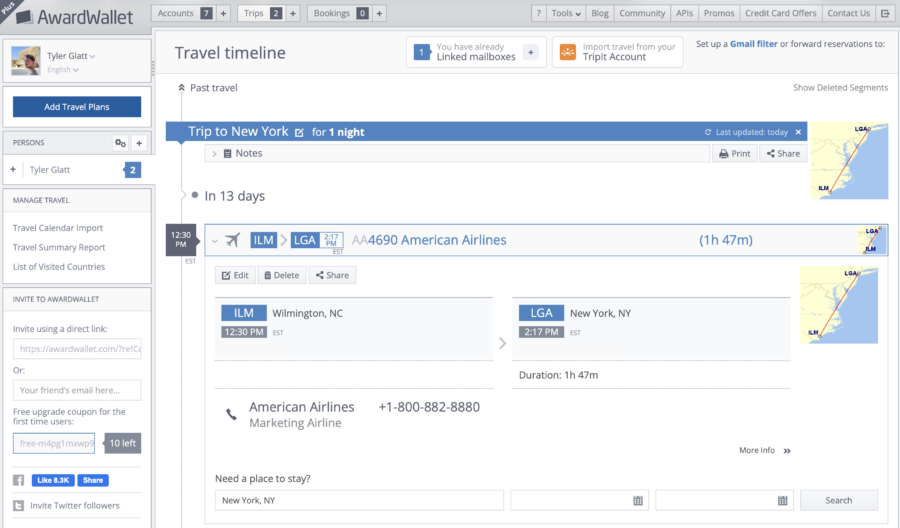
Beyond the basics like flight numbers, travel dates, and departure times, AwardWallet also pulls in details such as passenger names, seat assignments, class of service, aircraft type, and even how much you paid in cash or points. As your departure approaches, you’ll also see gate and terminal information.
In some cases, you’ll even see an estimate of your savings per point on award tickets, based on our analysis of what a comparable cash ticket would have cost.
Related: How Much Do AwardWallet Members Actually Save When Redeeming Points?
Get alerts when your travel changes
Because of the nature of travel, airlines inevitably change itineraries. Fortunately, AwardWallet looks for those changes and notifies you when they happen. In your timeline, you can see exactly what was updated, including the differences between the original itinerary and the new plan.
Hotels, rental cars, and other trip details
You also can view details for your other travel plans, just like you can with your flights. These reservations will include details like:
- Check-in date for hotel stays
- Pick-up date and time for car rentals
- The location's address
- Phone numbers and other important contact information for the company you have booked with
- Number of nights for hotel stays or days for rental cars
- Number of guests
- Confirmation number
- Room number
- Estimated check-in time and checkout time, based on how long it will likely take you to get from the airport to the hotel
Adding a New Trip to Your AwardWallet Timeline
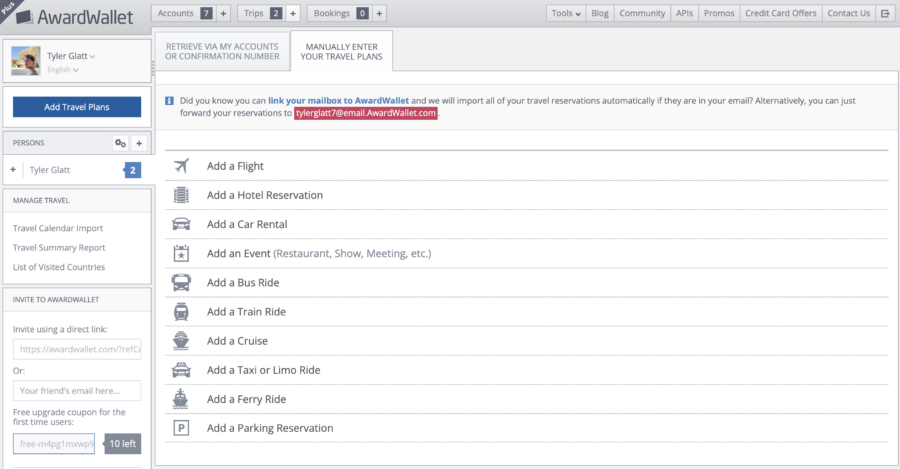
AwardWallet makes organizing your trips simple, with three ways to add new plans to your account. The easiest option is to use AwardWallet’s email parsing.
You can give AwardWallet permission to automatically import travel plans from your email. To set this up, go to your AwardWallet account and navigate to the “Trips” page. From there, select the option to link your mailbox so AwardWallet can import your trips. You’ll be taken to a new page where you can choose your email provider and enter your email details.
Alternatively, you can manually forward your travel plans from your email. Just use the forward function and send them to your unique AwardWallet address. AwardWallet creates this address for you and uses it to receive your reservations, analyze them, and add them to your timeline automatically. You’ll find this personalized address at the top of your “Trips” page.
The third option is to add plans manually to your AwardWallet trip timeline. You’ll find the “Add Travel Plans” option at the top of the AwardWallet “Trips” page. Clicking it takes you to a new page where you can enter your trip details by hand.
Group Your Individual Reservations Into Trips
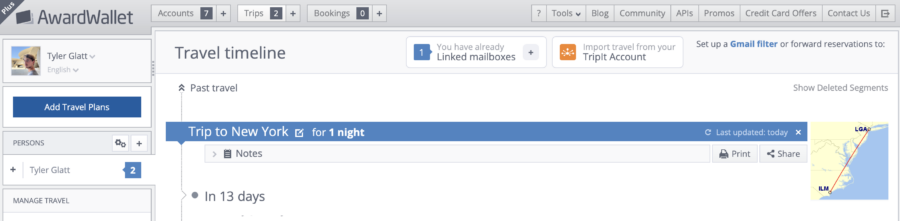
As you add plans to your AwardWallet trip timeline, you can further organize your travel by grouping individual reservations into a single trip using the “Group Itineraries Into a Trip” feature. This keeps everything for one journey together, so it’s easy to view without mixing in details from other upcoming trips.
You’ll find this option beneath each individual reservation. Just click the plus sign, and AwardWallet will group your plans into one itinerary.
Sharing Travel Plans With Others
Once you’ve created a trip, you can share the details with anyone, even if they don’t have an AwardWallet account. In your trip timeline, select the trip you’d like to share, then click the “Share” option. AwardWallet will generate a unique link you can send to others.
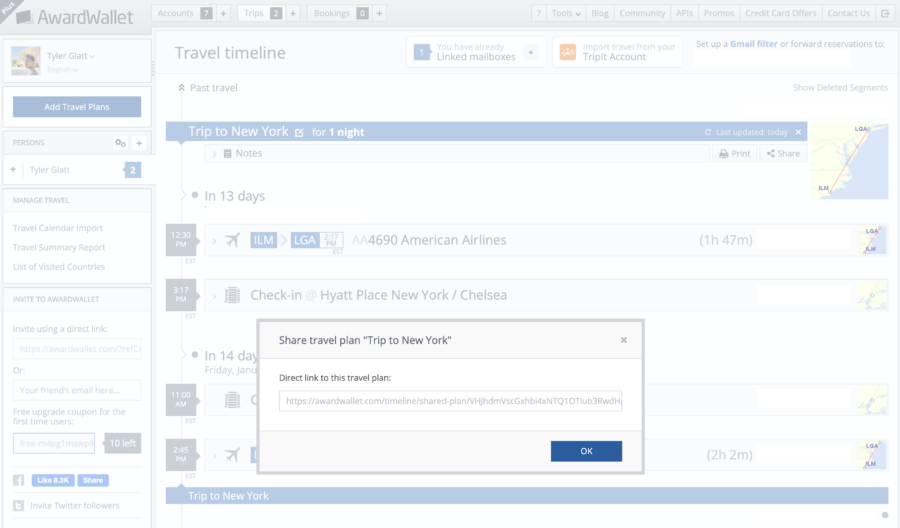
And don’t worry about your sensitive information. Details like confirmation numbers are automatically removed when you use this feature.
See Your Trips on the AwardWallet Mobile App
All of these features are also available on the AwardWallet mobile app. For Android users, click here to download the app. iPhone users can download it here.
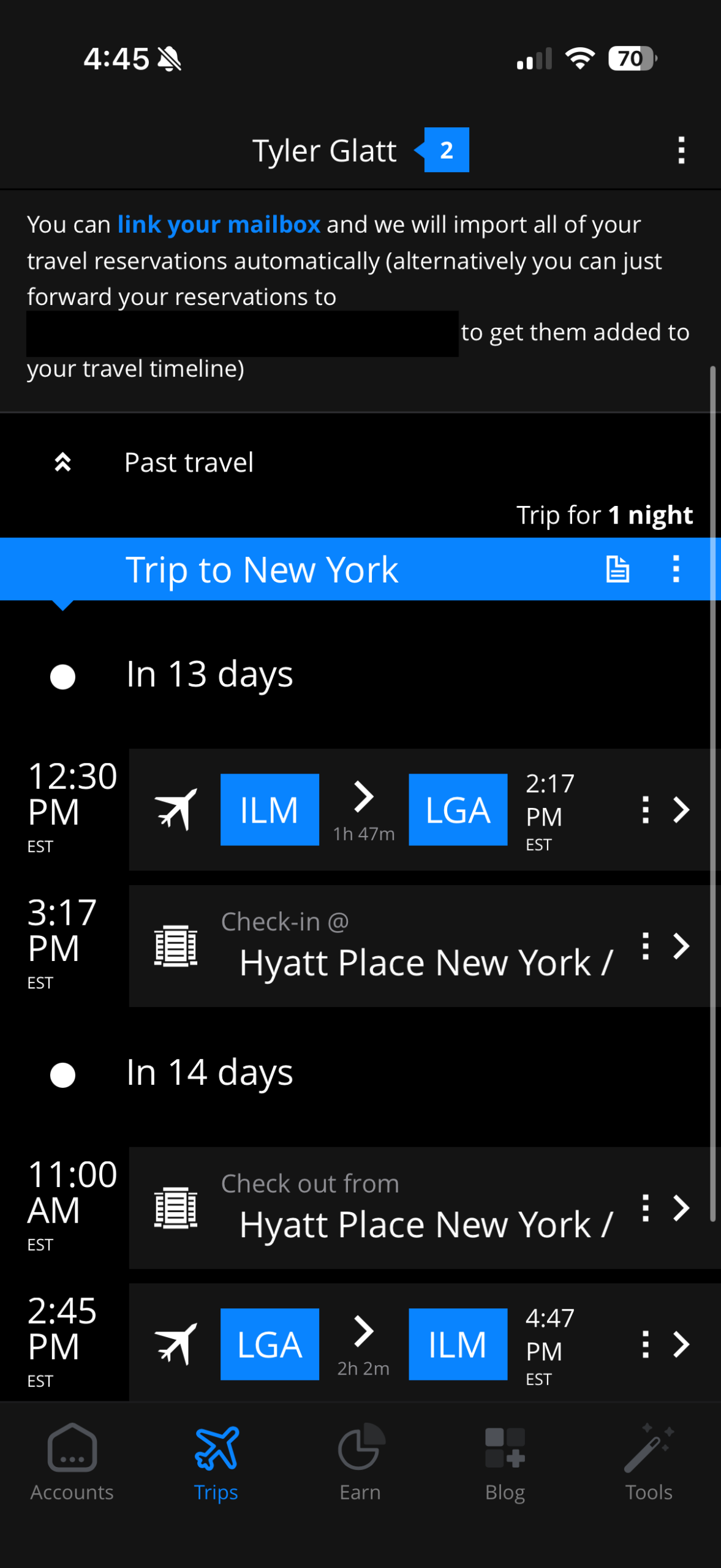
You can access your trip information from the bottom left of the app. Tap “Trips” and you’ll be taken straight to your trip timeline, where you can view your travel plans, reorganize trips, share details, delete plans you no longer need — and even see all the airport lounges you can access on your next layover.
Now that you know how to use your trip timeline function, it's time to move on to the next feature. Check out how to supercharge your AwardWallet timeline by connecting a mailbox.
This post is part of our welcome series for new AwardWallet members. Below are a few quick and simple guides to help you set up your account, along with friendly tips for getting the most out of our most popular features.
- How to Track Your Rewards Using AwardWallet
- How to Track Your Travel Plans With the AwardWallet Timeline (this post)
- Supercharge your AwardWallet Account by Connecting a Mailbox
- Use AwardWallet to Track Free Night Awards, Room Upgrades, and More
- Set and Track Goals Using AwardWallet
- Perks of AwardWallet Plus
- Earn Points and Miles Referring Others to AwardWallet
- Tracking and Adding Passports in AwardWallet


![Guide to JetBlue BlueHouse Lounges: Where They Are and How to Access [Day Passes Added]](https://awardwallet.com/blog/wp-content/uploads/2025/12/JetBlue-Lounge-Featured-900x720.png)