







AwardWallet receives compensation from advertising partners for links on the blog. The opinions expressed here are our own and have not been reviewed, provided, or approved by any bank advertiser. Here's our complete list of Advertisers.
ExpertFlyer is one of the most powerful and data-rich tools for frequent flyers and award travelers. Taking information from global distribution systems (GDS) used by most of the world’s major airlines, ExpertFlyer hosts a wealth of information from basic flight timetables to detailed availability for upgrades and award travel.
With such a wide range of features and functions on a single platform, getting started with ExpertFlyer can be daunting. Until just a few months ago, ExpertFlyer’s 1990s-style user interface only made getting started on the platform even more daunting. Thankfully, the platform received its first refresh in decades this year, and it’s slightly more user-friendly.
We’ve built this guide to serve as a simplified overview of each feature and function offered on the platform. Here’s how to get the most out of ExpertFlyer's tools and resources.
Page Contents
- What is ExpertFlyer and How Does it Work?
- Tools and Features Available on ExpertFlyer
- View Award & Upgrade Availability
- View and Sort Through Flight Availability Using ExpertFlyer
- Explore Flight Timetables
- Track Flight Status
- View Flight Details
- Access Real-Time Seat Maps
- View Fare Information
- Access Other Travel Information
- Should I Pay for an ExpertFlyer Membership?
- The Bottom Line
What is ExpertFlyer and How Does it Work?
ExpertFlyer may seem like a complex and challenging tool, but when you start to peel back the layers of the platform, it's actually a pretty simple concept. In short, ExpertFlyer allows travelers to access flight information from global distribution system suppliers.
Global distribution systems provide flight information via networks to online travel agencies and other tools. ExpertFlyer is connected to these major networks. Through these networks, travelers can access information that was usually restricted to travel agents. That said, some airlines block ExpertFlyer from accessing their data or have data sources that aren't compatible with the platform.
Before we dive into the features offered by ExpertFlyer, it's worth noting that the platform faces some headwinds. Airlines are currently shifting parts of their booking systems away from global distribution system technology towards a new technology known as NDC (New Distribution Capabilities). Over time, this could limit how much information ExpertFlyer is able to display for a certain airline or for certain fare types.

The information that is available on ExpertFlyer is also available on sites like Google Flights and Kayak. What makes ExpertFlyer different from these sites is the amount of information about a flight the platform provides, like award and upgrade space on some airlines.
It's the advanced and in-depth level of detail provided on ExpertFlyer that makes the platform unique.
Related: Beginners Guide to Award Travel Planning – Award Flights
Tools and Features Available on ExpertFlyer
The following sections provide deep dives into the features available on ExpertFlyer. As a result, there’s a lot of information. If you’re only interested in one or two of the features available on ExpertFlyer, you can use the table of contents to jump from section to section. The main features we'll cover include:
- View award & upgrade availability
- View and sort through flight availability
- Explore flight timetables
- Track flight statuses
- View flight details
- Access real-time seat maps
- View fare information
- Access other travel information
View Award & Upgrade Availability
Travelers can check for upgrades and award availability using an airline’s website or mobile app. But as many travelers know, these rarely show the full picture.
Over the last several years, any airlines have shifted to dynamic award pricing. In addition to dynamic award pricing, non-award (cash) tickets are also dynamic. However, airlines continue to use a letter-based system to designate fare classes and available inventory.
As this system also includes upgrades and award tickets, you can view upgrade and award availability for a number of airlines on the ExpertFlyer platform. For example, Air France assigns the “X” fare class to standard economy award tickets. Likewise, American Airlines assigns the “C” fare class to American Airlines mileage upgrades and systemwide upgrades.
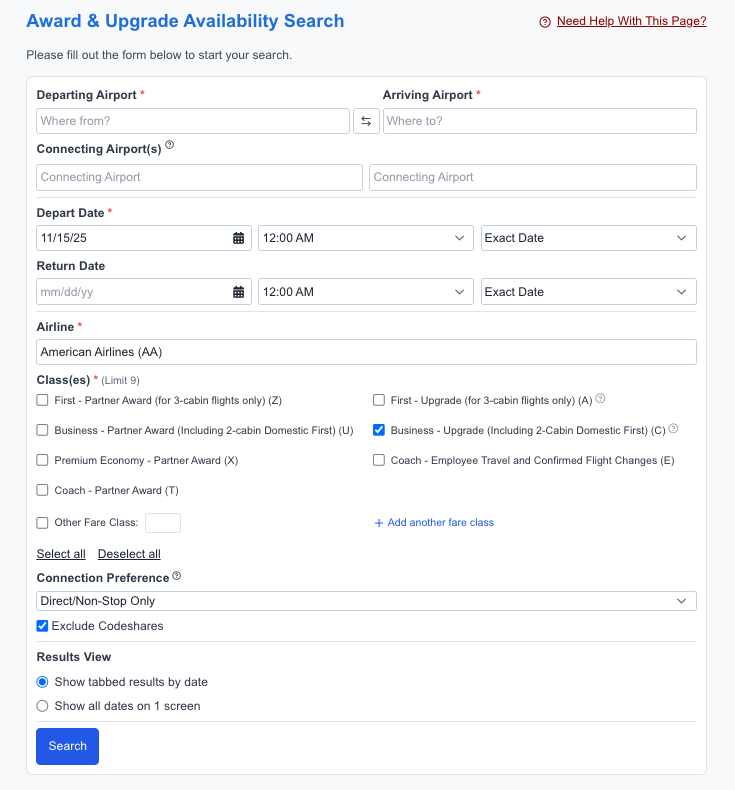
ExpertFlyer breaks down the various types of awards and upgrades for each airline, so you don't need to become an expert on what each fare code means. If you want to learn more about an airline’s fare or class codes, you can scroll down to the “Reference” section on the ExpertFlyer website and click “Class codes.”
Once you click “Class codes”, simply enter an airline’s two-letter code (e.g., AA, B6). You will then see an exhaustive list of the airline's fare codes and what each code means.
Knowing these fare codes can make using ExpertFlyer easier. Another good tool for navigating the world of airline fare codes is CWSI.net is an excellent tool for viewing fare codes. On this site, for example, the Alaska Airlines page notes that complimentary upgrades to first class clear into the “U” fare class.
ExpertFlyer lets you see which fare classes are available on supported airlines. This makes it easy to find award and upgrade space without manually searching the airline's website. Some awards may be missing from an airline’s award search results — especially if you're trying to book with a partner airline.
Not every major airline shares the information needed for ExpertFlyer to display upgrade or award space. Unfortunately, over the past few years, a number of carriers — including most Star Alliance carriers — removed this information. That means you can no longer view award space or upgrade availability.
Below is a list of major airlines that do and do not allow users to view upgrade and award availability:
Major airlines that show upgrade and award space on ExpertFlyer
- Aer Lingus
- Air Canada (upgrades only with the exception of premium economy awards)
- Air France
- Air Tahiti Nui
- Alaska Airlines
- American Airlines
- Finnair
- Hawaiian Airlines
- JetBlue
- KLM
- Qantas
Noteworthy airlines that don't show upgrade and award space on ExpertFlyer
- British Airways
- Delta Air Lines
- Emirates (only “Flex” awards available)
- Iberia
- Lufthansa
- Qatar Airways
- Singapore Airlines
- Turkish Airlines
- Virgin Atlantic
- United Airlines
Related: When to Upgrade Airline Tickets with Miles
How to search for upgrade and award availability on ExpertFlyer
To start, log in to your ExpertFlyer account here and select “Awards & Upgrades” from the ExpertFlyer menu.
On the following screen, input all required details, including departure and arrival cities, dates, and your desired airline. Once you have selected your desired airline, you’ll be presented with a list of possible upgrades and awards.
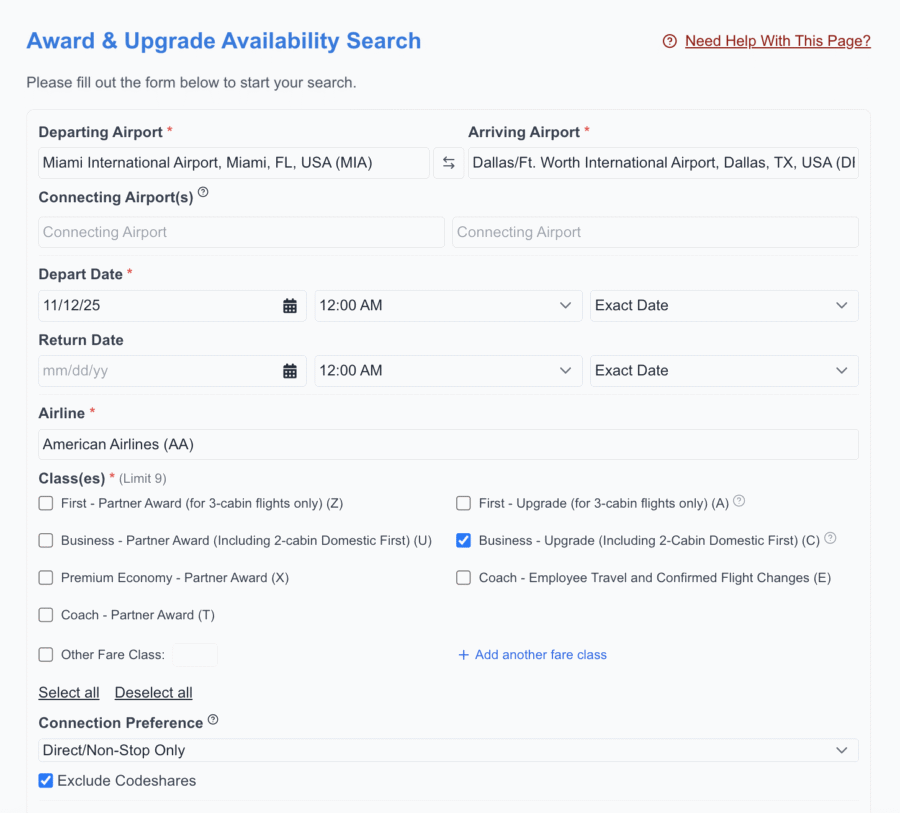
Before you search, it’s important to note what fare types will be available on your desired flight or flights.
In this example, I am looking for systemwide upgrade (SWU) availability on a flight from Miami International Airport (MIA) to Dallas-Fort Worth (DFW) with American Airlines. This is a domestic route often operated by a variety of aircraft; however, all are sold as two-cabin aircraft with a domestic first class and economy cabin.
With that information, I can select my search parameters from the list. In this example, I selected “Business – Upgrade (Including 2-Cabin Domestic First) (C)” to see SWU availability for my desired route. I did not choose to search for first-class awards, as this is only applicable to three-cabin flights with a Flagship First cabin.
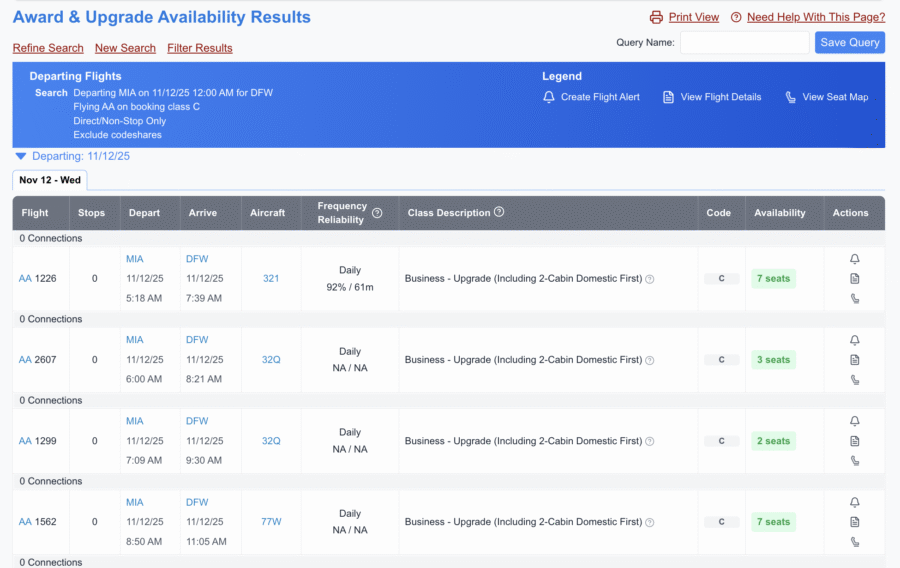
On the following screen, you will see flights that fit your search parameters and how many seats are available in your desired fare code. In this example, I can call American and use a SWU or AAdvantage miles to upgrade my flight for any flight with a number next to the “C” fare code.
Related: How to Use SeatsAero to Find American Airlines Systemwide Upgrade Space
Now, let’s say I want to use my Alaska Airlines Atmos points to book a first class award on American Airlines. You may think that, in the airline field, you would want to select Alaska Airlines. However, you will actually select American Airlines as this will show you the “Z” fare class availability which is the fare you will book when redeeming Atmos points for a first class ticket.
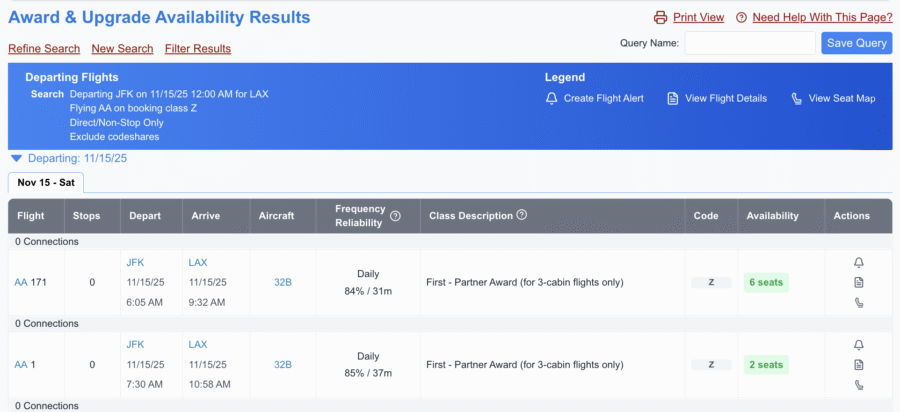
In this example, I want to use my Alaska Airlines Atmos points to fly on American Airlines in Flagship First Class from New York-Kennedy (JFK) to Los Angeles (LAX). With American Airlines selected as the airline for this search, I need to select “First – Partner Award (for 3-cabin flights only) (Z).”
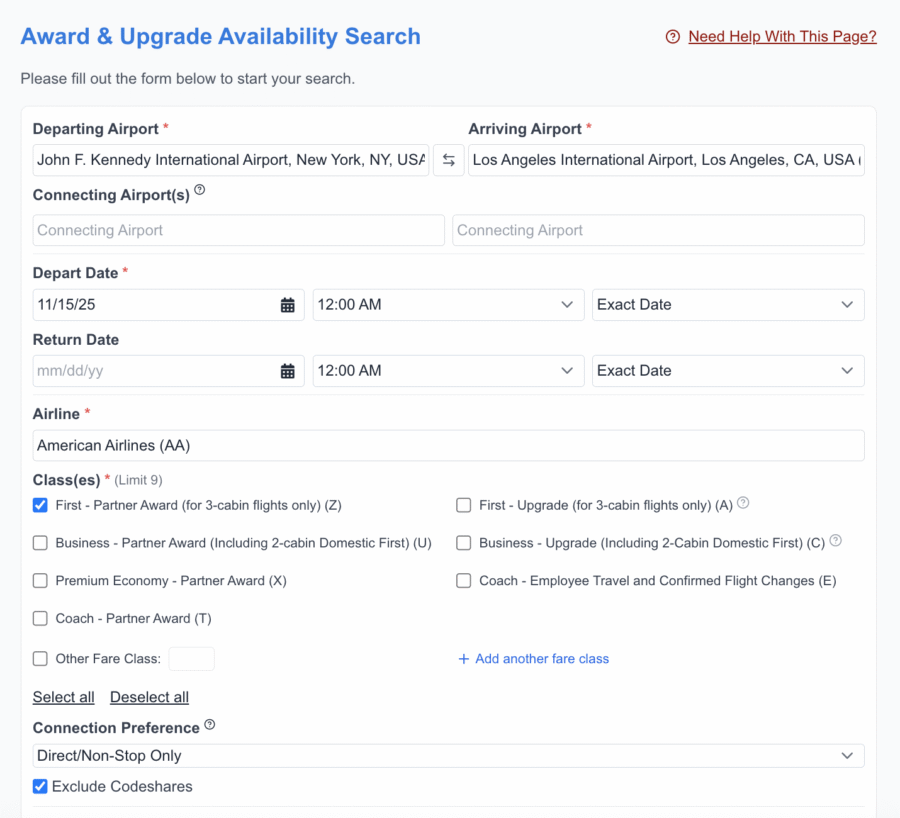
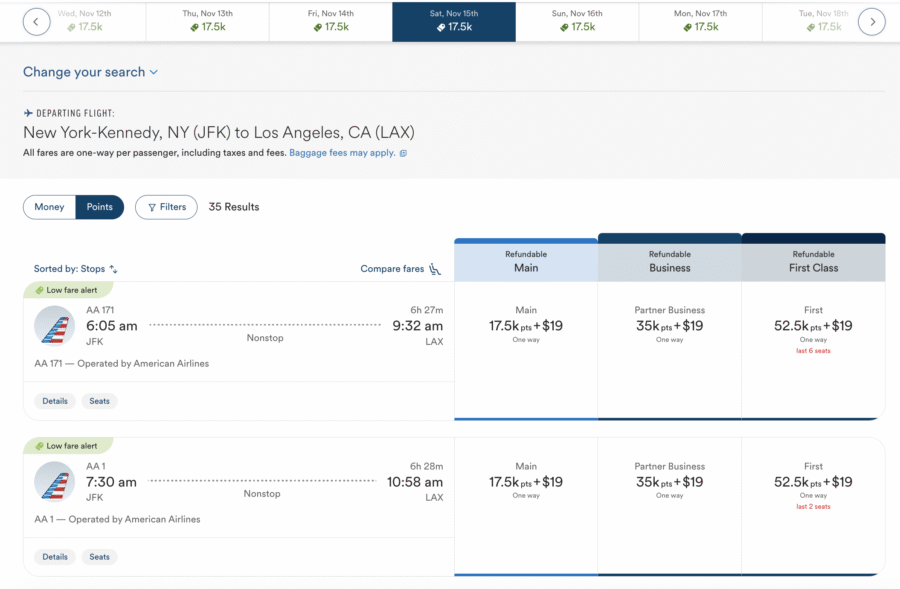
As there is plenty of Z fare class availability, this means I should see these two flights listed when searching the Alaska Airlines website for award flights.
As expected, both flights listed in the ExpertFlyer search are available to book via Alaska Airlines’ website.
Related: How To Fly in American Airlines' Best Business (and First) Class Seats in the United States
View and Sort Through Flight Availability Using ExpertFlyer
Platforms like Google Flights and other flight search tools can help you find available flights. However, as with award and upgrade availability, these tools do not show you important information, like what fare classes are available to purchase.
That's where ExpertFlyer comes in. It can show which fare classes are available to purchase and roughly how many seats are remaining in said fare class. Knowing which type of fares (and the number of tickets still available for that fare) are available makes searching for and booking specific flights easier.
This is especially true for hard-to-find award tickets like Lufthansa first class. If you see numerous seats remaining in first class (booking codes F, A, and O) a few days out, chances are it'll become bookable with points closer to departure.
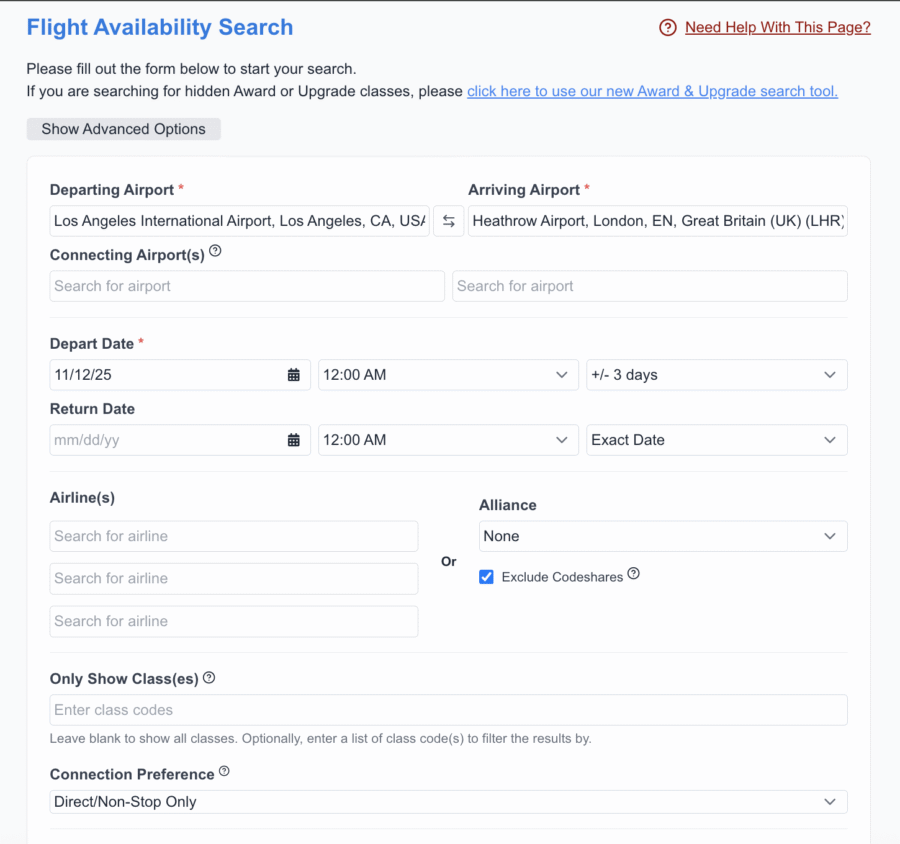
In this example, I want to view the availability of flights from Los Angeles (LAX) to London-Heathrow (LHR). Select “Flight Availability” from the main dashboard to search for availability. On the following screen, provide all required information and additional information to limit search results to the flights you want to see.
For this example, I checked the option to exclude codeshares to refine my search results. Since my travel dates are flexible, I chose the option for “+/- 3 days.”
The following screen will display flights that meet your search parameters, broken into tabs or sections if you indicated that your departure dates are flexible. The flight result page shows:
- Flight number
- Number of stops
- Departure/arrival cities
- Aircraft type
- Frequency and reliability
- Available fare classes
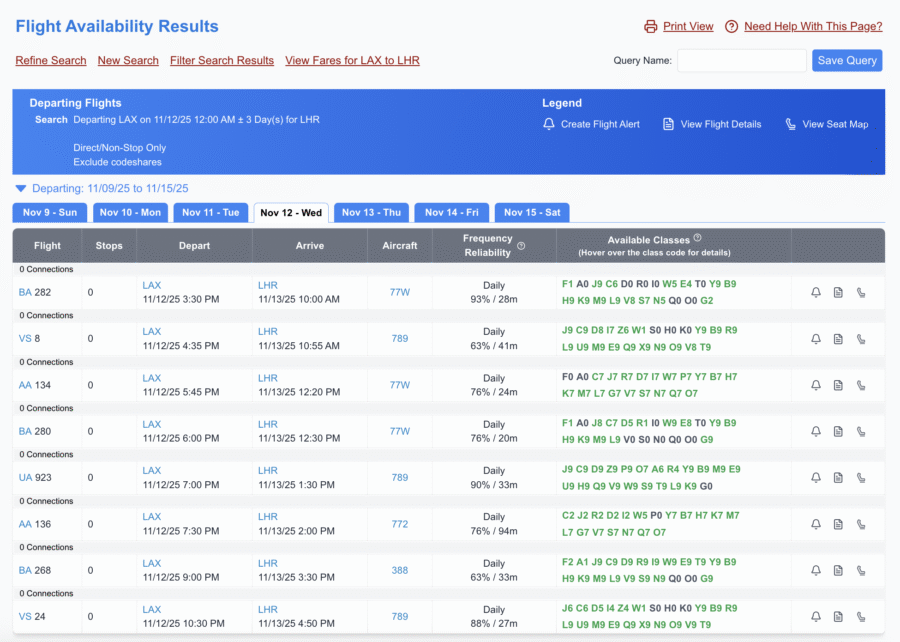
On the far right side of the flight results page, you can select one of the three icons to view additional information for a specific flight. These icons toggle the option to create a flight alert, access detailed flight information (meals, flight time, etc), and view the seat map.
It's important to know that, depending on the airline, either “7” or “9” is the highest number for any given fare type. If you see nine seats available for a fare type, you'll know that at least nine seats are available in that fare class. Same with some airlines (such as with American Airlines in the example above) when seven seats show as available.
Explore Flight Timetables
ExpertFlyer can also show you flight timetables. This might not sound revolutionary, but you can view more than just timetables for flights between two airports.
You can view flights departing from any major airport on a given day. You can also view all the flights arriving at any major airport.
This information is especially valuable during irregular operations, like in the case of a prolonged government shutdown impacting air traffic controller staffing. If you need a backup plan, seeing all the flights from where you are to where you want to be can be invaluable in getting you home or to an important event.
Travelers have three ways to view flight timetables:
- All flights for a given day between specific departure and arrival airports
- Departures from a specific airport
- Arriving flights at a specific airport
To search for flights between two airports, input your desired departure and arrival airport and select a date.
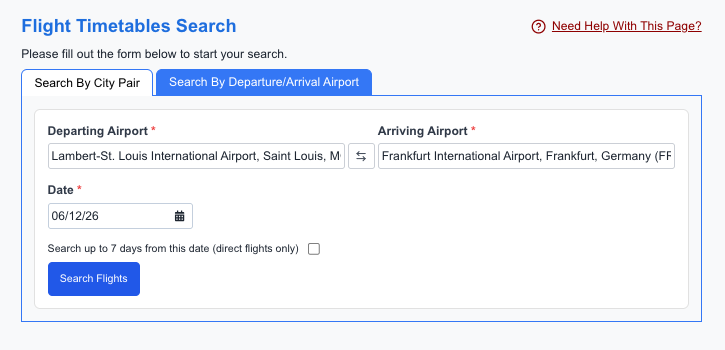
Once you have your search results, you can view additional information about your flight. This includes aircraft type, flight duration, and the days the flight operates.
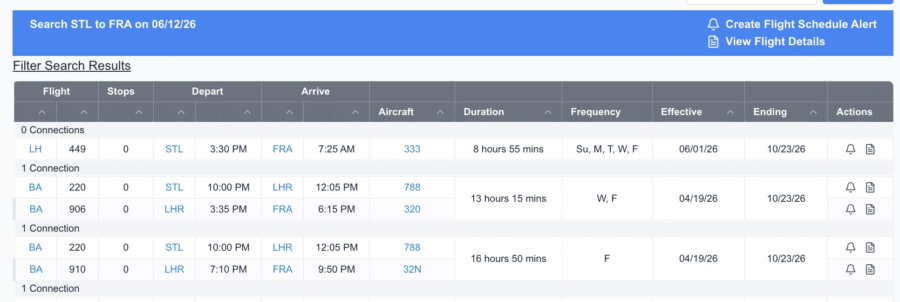
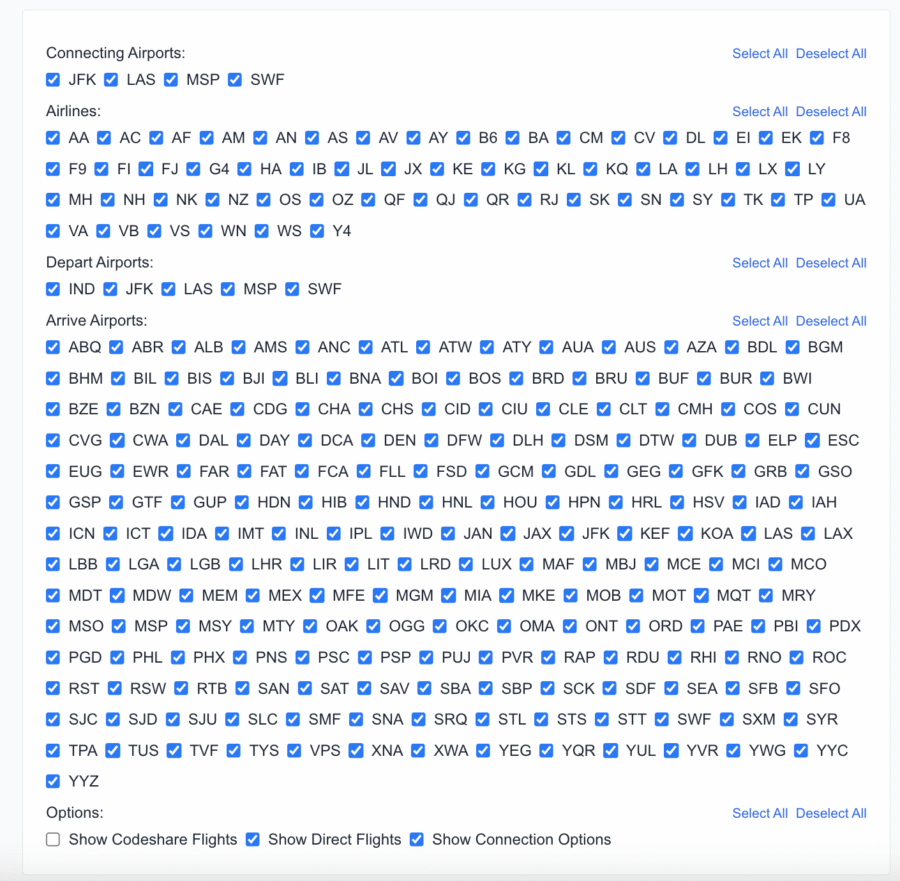
To search for all departures from a specific airport, head to the Flight Timetables tab and select “Search by Departure/Arrival City.” Then, enter your desired airport and date. Make sure you choose “Depart Airport” or “Arrive Airport” based on your needs.
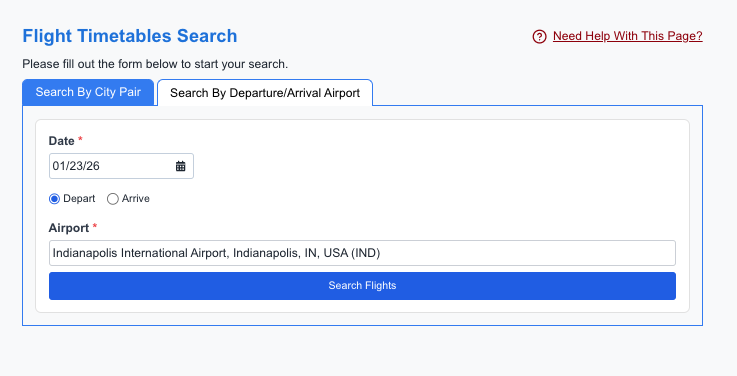
The following screen will display all flights, including codeshare flights from/to your desired airport.
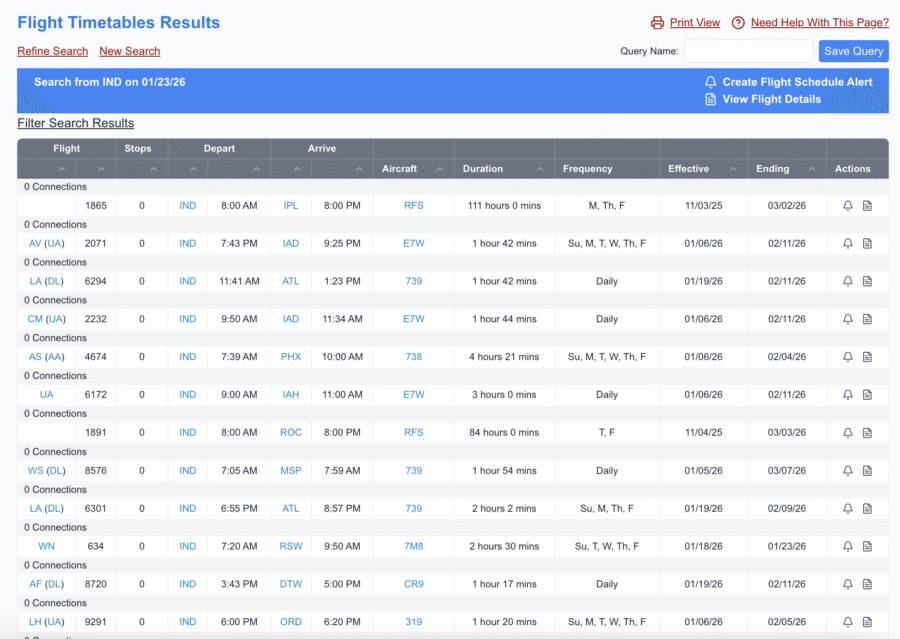
To filter out codeshares or view flights to a specific city, click “Filter Search Results.” You can also filter out flights with connections and filter by airline (using the two-character airline code).
Track Flight Status
One of the most basic features of ExpertFlyer is the ability to check the status of a flight. Of course, this is also a feature of any search engine. Just type your flight information into Google to see your flight's departure and arrival status.
However, like is the case with many features on the platform, ExpertFlyer goes a few levels more in detail and provides additional information you won't find on Google
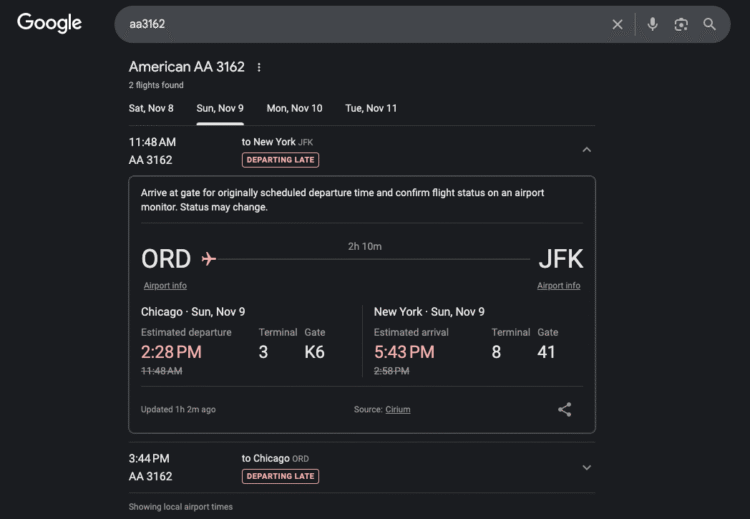
The details you get about a flight depend on what the airline provides to ExpertFlyer's GDS partners, but you might see:
- Planned flight information, including meal service
- Up-to-date terminal and gate information for both the departure and arrival airports
- Schedule reliability
- Additional comments
- Any schedule irregularities at your departure and arrival cities
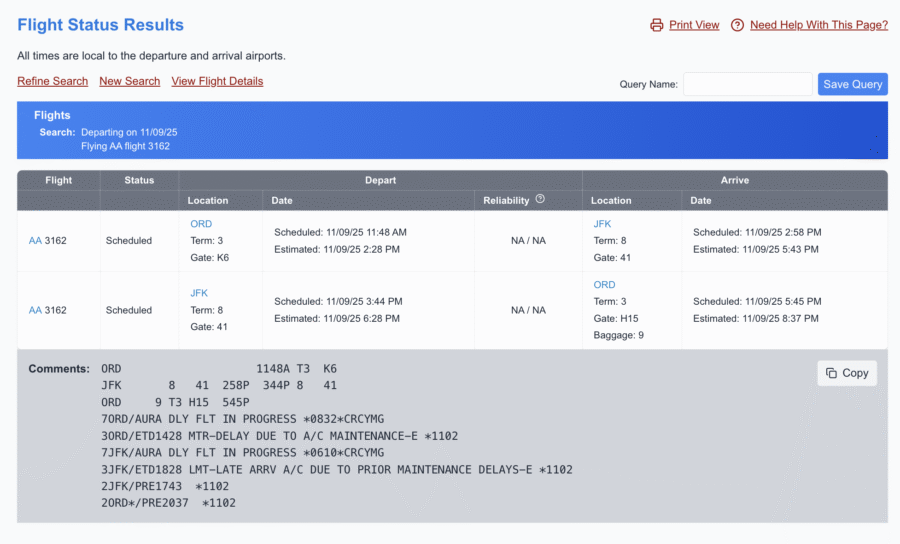
But if you search for a flight closer to departure and choose a flight departing the U.S., you may get additional details:
- Up-to-date terminal and gate information for both the departure and arrival airports
- Any new comments
- Updated schedule irregularities at your departure and arrival cities (if any)
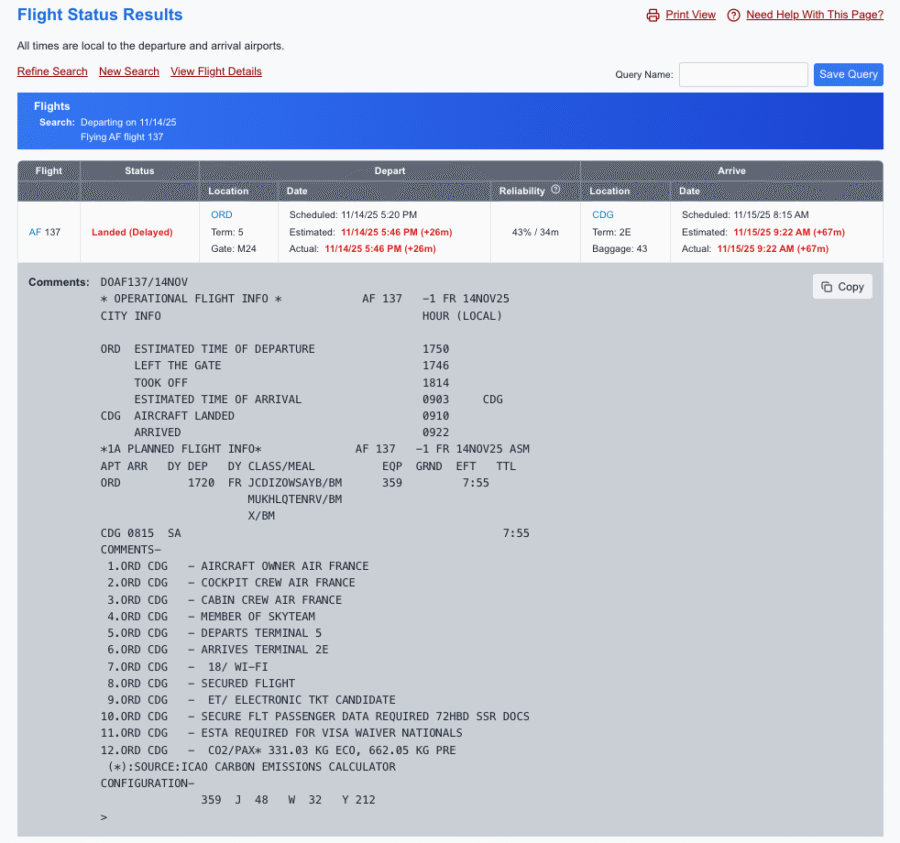
The most interesting feature of the Flight Status tool is the option to view “Additional Comments.” These comments might include security and visa requirements, estimated CO2 emissions, and aircraft configuration.
You can also see why your flight is delayed — here's an example of a delayed Air France flight earlier this year from Chicago (ORD) to Paris (CDG):
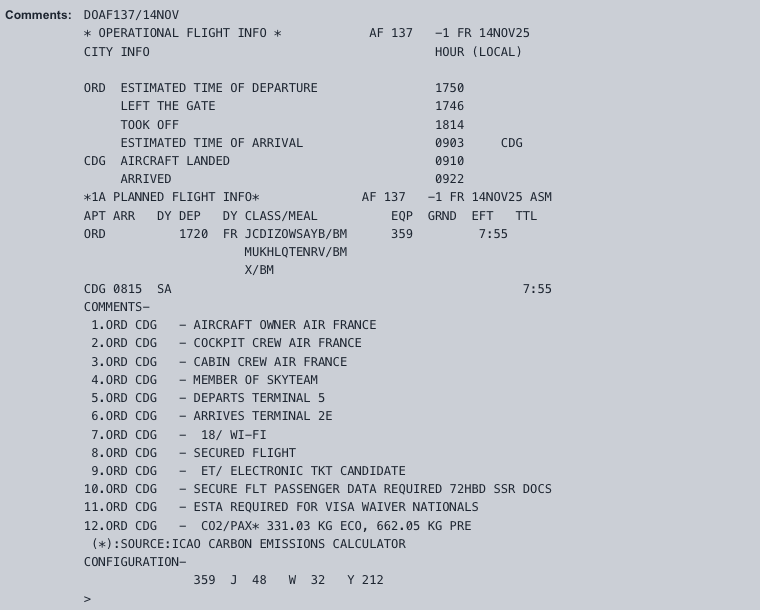
In the case of Air France flight AF137, we can see that the aircraft left the gate only 26 minutes late but, spent 28 minutes taxiing to the runway at Chicago-O'Hare. This meant the aircraft took off almost an hour late. We can also see that the crew was not able to make up for this delay while in-flight, and the flight ultimately arrived at the gate in Paris over an hour late.
ExpertFlyer lets you view the status of most flights for up to five days following the scheduled departure and up to three days before departure. However, the information available several days before departure will be less robust than that available at boarding or after takeoff.
View Flight Details
Another basic feature of ExpertFlyer is the ability to view flight details. This tool is very similar to tracking flight status. The only major difference is that the information displayed when searching for flight details is far more basic. Enter the departure date, airline, and flight number to view details for a specific flight.
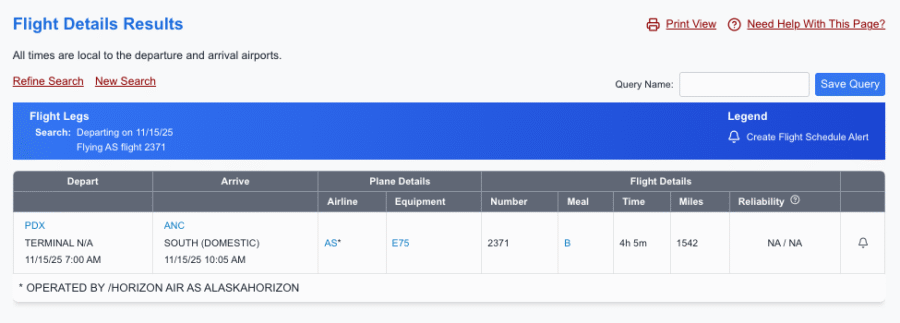
The information displayed about a flight includes:
- Departure airport, terminal, date, and time
- Arrival airport, terminal, date, and time
- Aircraft type
- Meals served onboard
- Scheduled flight time
- Flight distance
- Schedule reliability
You can click the bell icon to the right of the search result page to set a schedule change alert. This is helpful if you're hoping for a schedule change that you can use to change your flight for free.
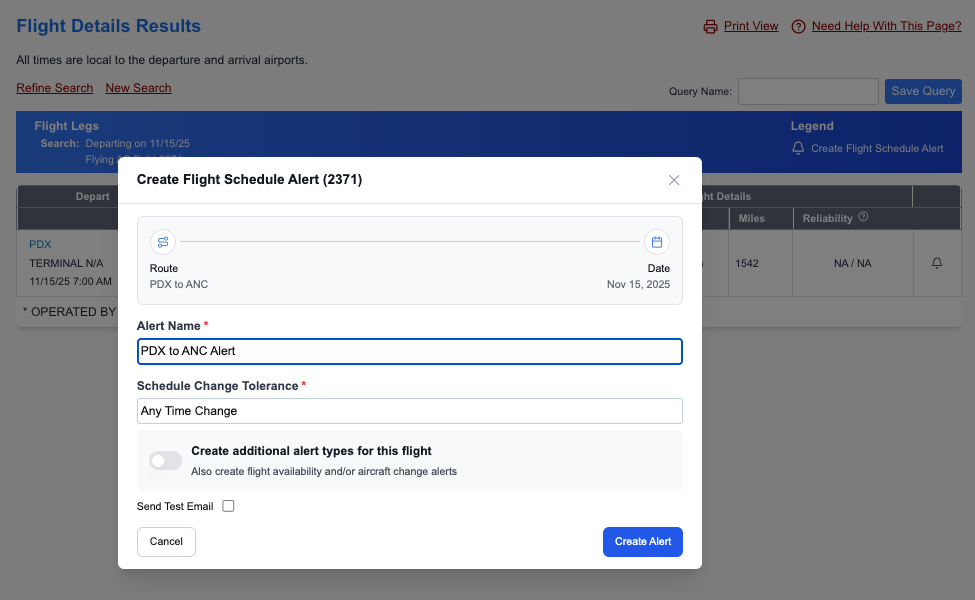
Again, viewing flight details is probably the most basic feature of ExpertFlyer. It's not all that noteworthy beyond schedule change alerts.
Access Real-Time Seat Maps
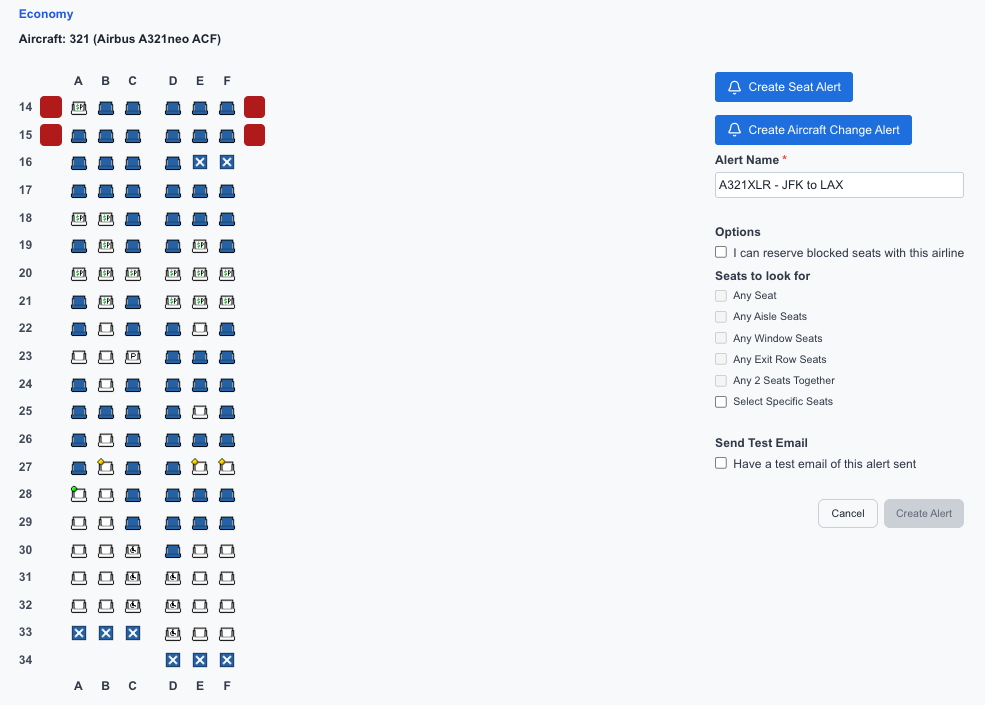
Accessing real-time seat maps is one of the standout features of ExpertFlyer. In a way, it's the platform's bread and butter.
While airlines let you access their seat maps via their app or website, these seat maps might not truly reflect what seats are available. Plus, you don't have to visit multiple airlines' websites, as ExpertFlyer displays seat maps for most major airlines.
All you need to bring up a flight's seat map is the operating airline, flight number, departure and arrival cities, and departure date. You'll also need to select the cabin(s) you want to see seat maps for.
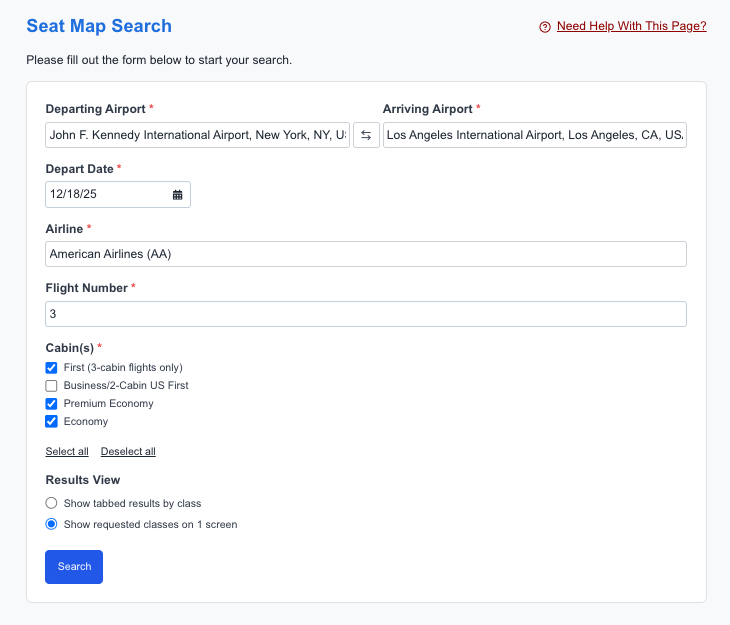
Not every airline lets you view real-time seat maps. Some airlines block the ability to view the seat map for certain cabins and flights. You could also be blocked from seeing the seat map once boarding begins. You can also access seat maps from the “Flight Availability” result page.
But seeing what seats are available can be useful. Maybe you're wondering if you should try to apply PlusPoints from your United MileagePlus account (and need to know how many seats are open first), or maybe you're hoping for an upgrade and want to see your chances based on the number of seats still open in business class. The seat map will show you a realistic picture.
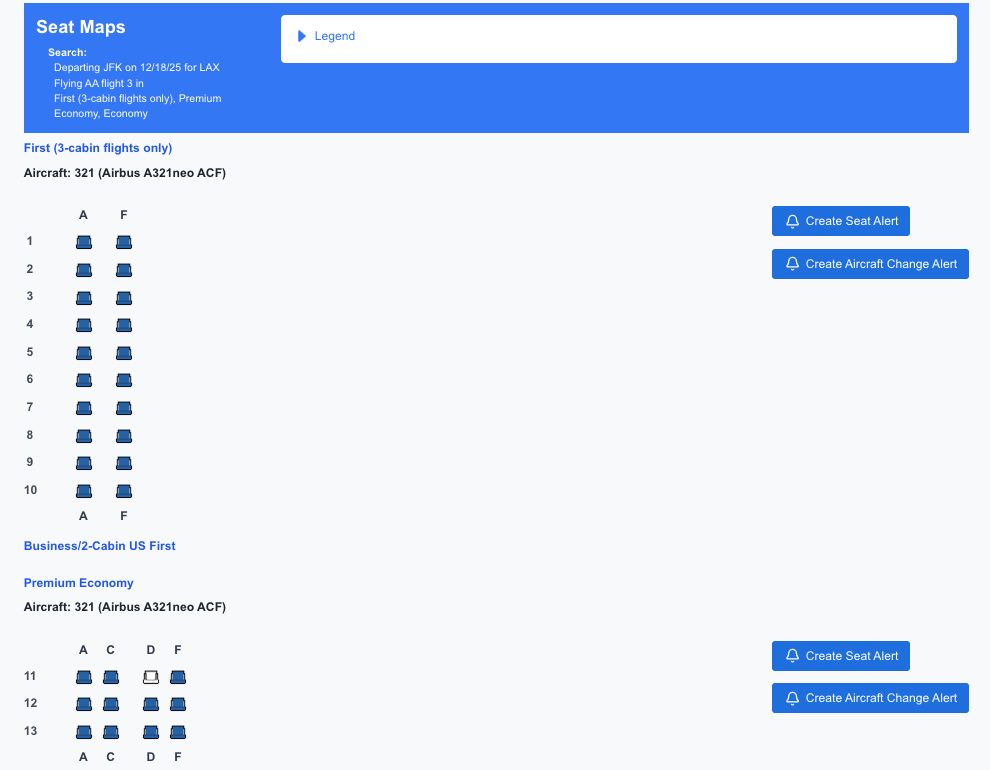
You also can create alerts for a particular seat becoming available or if any two seats together become available. Seat alert options include:
- Any seat
- Aisle seat
- Window seat
- Any exit row seat
- Two seats together
- Specific seats you select
View Fare Information
Likely one of the lesser-used tools of ExpertFlyer, you can view fare information for a specific route or flight. If you're wondering how to use this information, it's a good way to create a benchmark for ticket prices for an upcoming flight. It's also a good way to know what type of fare you see on an airline's website, including whether or not a ticket is changeable or refundable.
Deciphering information generated from this tool can be somewhat challenging. If you really want to mater fare codes and information, you can consult this very detailed guide from travel tech provider, Travelport.
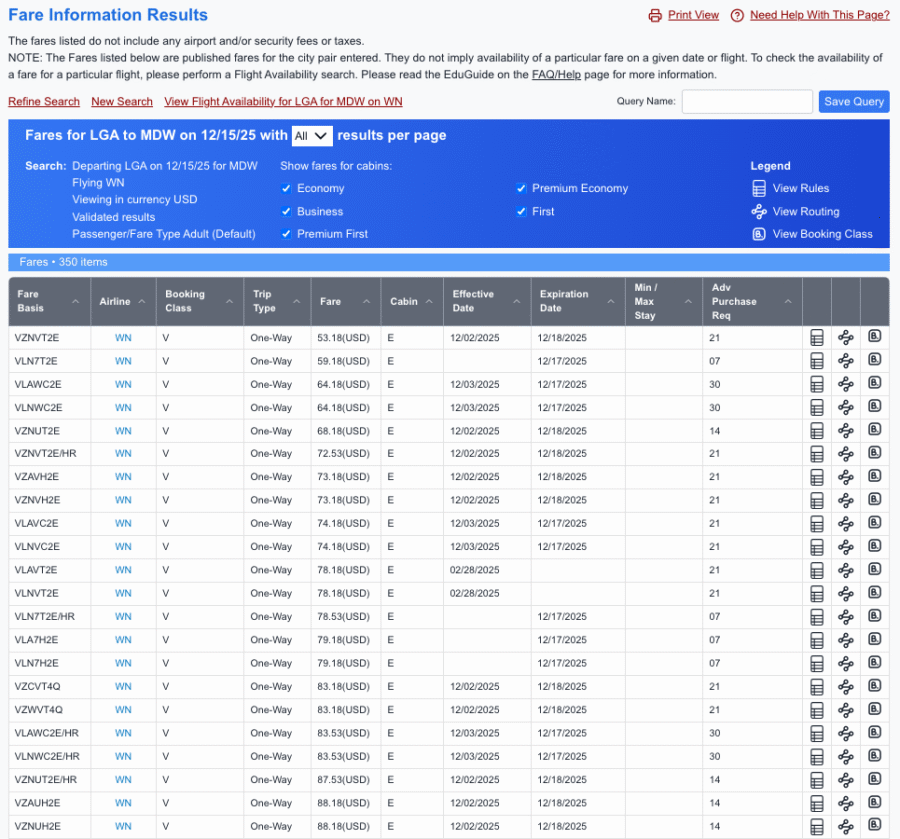
When using the “Fare Information” tool, you'll also be able to get additional information about a certain fare, including:
- Fare basis
- Fare class
- Effective date
- Expiration date
- Any minimum or maximum stay requirements
- Advanced purchase requirements
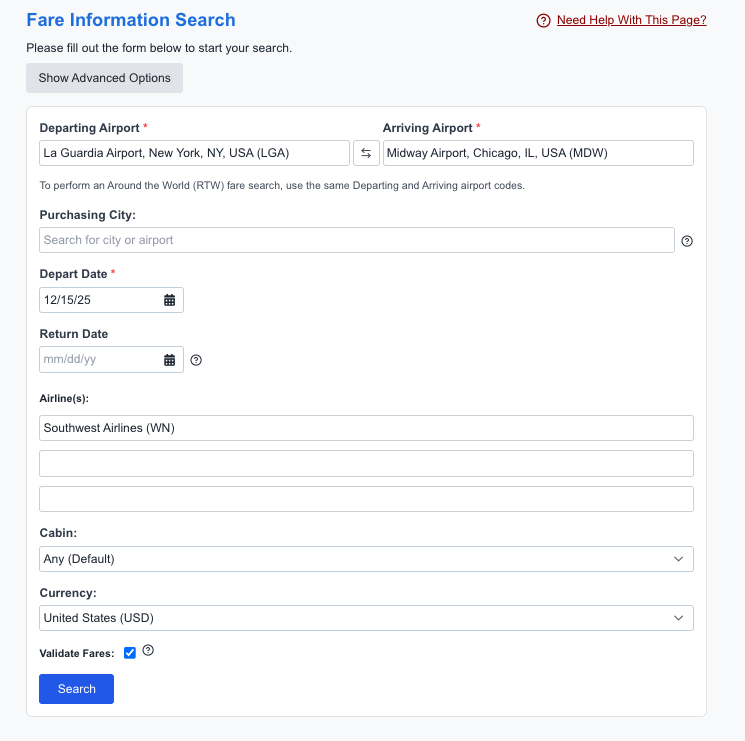
To view fare information, input basic information like departure and arrival cities, departure and return dates, and up to three airlines. The only part of the search page that may come as a surprise is “Purchasing City.” This is here because different regions often receive different fares. You don't have to add a city if you don't have any special requirements.
On the next page, you'll see a list of results with fares, cabins, effective dates, whether the fare ends at a certain time, and advance purchase requirements (e.g., 10 days in advance to get this price). If you're searching for round-trip flights, you'll also see minimum and maximum stay requirements to get this flight price. For example, some fares may require you to stay at your destination for several days before flying home.
Access Other Travel Information
ExpertFlyer also offers additional travel resources. These resources can be found under the “Travel Information” tab:
- Flight reliability ratings
- Minimum connection time
- Maximum permitted mileage
- Connecting cities
- Interline agreements
- Visa, health, and passport requirements
When using each tool, ExpertFlyer provides additional information about what it does and what information it shows. Additionally, any codes are broken down below the search results.
Should I Pay for an ExpertFlyer Membership?
With a wide variety of valuable information available on ExpertFlyer, it's probably no surprise that many of these features are only available with a paid membership. But does it make sense to pay for a “Pro” subscription to ExpertFlyer? The answer depends on which features you plan to use and how often you'll use ExpertFlyer.
The three types of ExpertFlyer memberships
ExpertFlyer offers three types of memberships. The first is the free account. The only requirement for a free account is to sign up with an email and password. The other two types of memberships are “Pro” subscriptions and requirement payment.
The biggest differences between the two Pro memberships are the number of searches you can complete each month and access to flight availability alerts, flight schedule alerts, and aircraft change alerts.
Here's a breakdown of the three different types of ExpertFlyer memberships:
| Membership Type | Price (Monthly, Annually) | Available Tools | Number of Queries, Alerts |
|---|---|---|---|
| Free | Free | Seat Maps, Seat Alerts | Up to 1 seat alert at a time and limited seat map queries |
| Pro Basic | $4.99 monthly, $50.04 annually | Most tools. Excluded tools: Flight availability alerts, flight schedule alerts, aircraft change alerts, all available published fare pricing, flexible search of + or - 3 days from travel dates, save queries for repeated use, mobile edition, and annual subscription discount. | Up to 250 queries & up to 4 seat alerts |
| Pro Premium | $9.99 monthly, $99.96 annually | All tools and features | Unlimited queries & up to 200 combined alerts |
Who should pay for an ExpertFlyer Pro membership?
Again, the answer to this question depends on what information a user wants to access and how often they plan to access this information. Many travelers are fine with viewing seat maps and creating seat alerts, so a free ExpertFlyer account will suffice.
Seasoned frequent flyers and award travel enthusiasts might consider paying for an ExpertFlyer Pro membership. The program's extra tools make finding awards, upgrades, and flight availability easier. However, you should be sure that ExpertFlyer supports the airlines you fly the most.
Airline enthusiasts and the most avid award travelers might even benefit from having access to unlimited monthly search queries. Though, most travelers will fare well with the monthly limit of 250 searches offered by the Pro Basic membership.
Related: Best Credit Cards for Travel Purchases
The Bottom Line
ExpertFlyer is a powerful tool loaded with dozens of features and resources. While a free membership is available, access is limited to seat maps and alerts. For more seasoned frequent flyers and award travel enthusiasts, ExpertFlyer's Pro Basic and Pro Premium memberships unlock additional tools.
These upgraded memberships include the ability to search for award and upgrade availability, view flight availability and timetables, and check the status of a flight. These tools only scratch the surface of what ExpertFlyer offers its Pro members, and they could save you time when looking for award and upgrade space.
Do you use ExpertFlyer? If so, what's your favorite tool? Tell us in the comments.

















AwardNexus provides access to ExpertFlyer on a stored value basis instead of recurring subscription.
But, point.me has far greater availability for award flights than ExpertFlyer, and both charge fees.